Google Workspace Offboarding Checklist: Accounts, Data and Apps
A Google Workspace offboarding checklist: lock the account on the last day, move Drive, Calendar and Gmail data, and remove the OAuth apps a leaver connected.

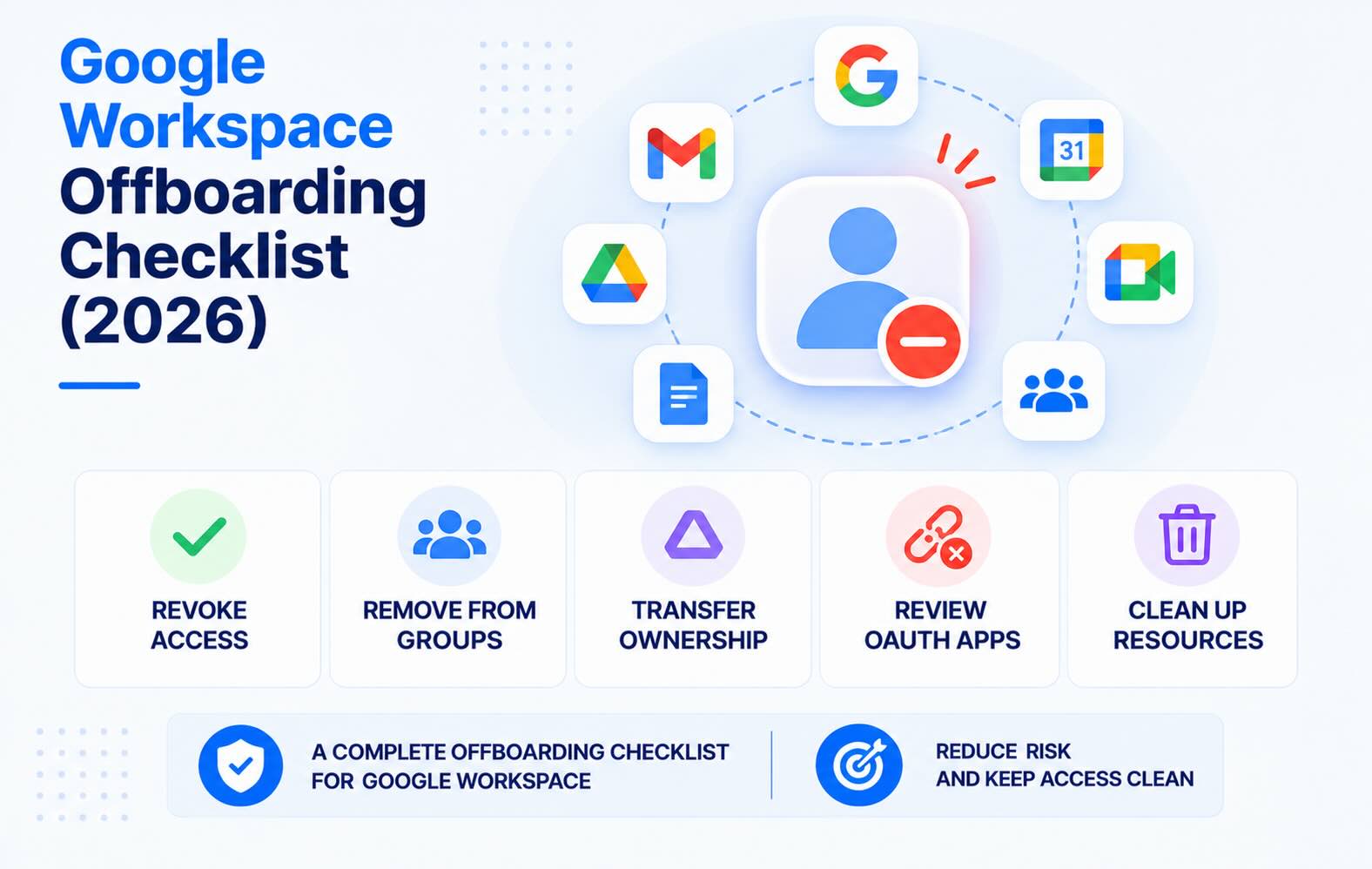
A Google Workspace offboarding checklist for IT admins: what to lock on the last day, how to move Drive, Calendar and Gmail data before you delete the account, and how to remove the OAuth apps and Apps Script projects a departing employee leaves behind. Menu paths are as of November 2026.
- Lock first, delete later. On the last day, wipe devices, change the password, remove recovery details and sign the user out. Delete only once the data has moved; a deleted user can be restored for 20 days.
- Suspended accounts still cost money. Google bills them like active ones, and on the Annual plan deleting a user doesn't lower the bill until renewal. Archive the user if you need to keep the data.
- Deletion moves Drive, Calendar and Looker Studio data, not Gmail. Migrate or redirect mail first, or give the address to a colleague as an alias.
- OAuth apps don't leave with the person. A password change revokes OAuth tokens only for "certain products", so remove each connected app and check the Apps Script triggers they own.
- Google is only half of it. Every SaaS app with its own login or session needs its own removal step.
Suspend, archive or delete?
Google Workspace gives you three ways to end a former employee's access, and they behave differently:
- Suspend (Directory → Users → More options → Suspend user). The user can't use Gmail, Drive or other services, and their data stays. New email and calendar invitations are blocked, and collaborators keep access to files the user shared. Suspended accounts "are still charged at the same rate as active accounts" (Google Workspace Admin Help).
- Archive. The account moves to an Archived User license: the person can't sign in, their data stays available to Vault users, and their regular license can be reassigned within 24 hours. It's available on Business Starter, Standard and Plus, Enterprise Standard and Plus, and Education editions (Google Workspace Admin Help).
- Delete. Super admins can transfer Drive files, the primary calendar and Looker Studio data as part of deletion, and the account can be restored for 20 days. Vault retention rules stop applying to a deleted user, and on the Annual plan deleting a user doesn't reduce your license count (Google Workspace Admin Help).
A practical default: suspend on the last day, move the data within a week or two, then delete. Archive instead when legal or compliance rules require you to keep the mail and files.
The Google Workspace offboarding checklist
Before the last day
- Name a new owner for the person's files, calendars, groups and scripts, usually the manager or a teammate.
- List what they own. Open the user in Directory → Users and note their My Drive files, calendars, the Google Groups they own, their Apps Script projects and the third-party apps under Security → Connected applications. Files in shared drives belong to the organization, so they stay put.
- List their accounts outside Google: Slack, Jira, Zoom, the CRM and anything else paid for on a company card. Connected applications is a good place to start.
On the last day: lock the account
Google's checklist for a departing employee lists these steps in this order (Google Workspace Admin Help):
- Wipe their devices. In Devices → Mobile & endpoints, point to the device, click More, then Wipe Account for a personal phone or Wipe Device for a company one. The device must be under basic or advanced management, and the wipe can take up to 3 hours (Google Workspace Admin Help).
- Remove the recovery email and phone, so the person can't reset the password themselves.
- Change the password. Google notes this "also revokes OAuth 2.0 tokens issued for accessing certain products". Only certain products, so the next step still matters.
- Remove connected apps. On the user's Security tab, Connected applications lists the third-party apps with access to their data. Remove each one.
- Reset sign-in cookies. This signs the user out of their account on every device and browser (Google Workspace Admin Help).
- Revoke security keys and app passwords.
- Suspend the account, unless you're archiving it today.
Move the data
- Drive. Go to Apps → Google Workspace → Drive and Docs → Transfer ownership, then enter the departing user under From user and the new owner under To user. Transfers work only inside your organization, and one that runs longer than 36 hours stops (Google Workspace Admin Help).
- Calendar. Transfer the primary calendar before you delete the user. Once the owner is deleted, no further transfers are possible.
- Gmail. Deletion doesn't move mail. Google suggests migrating it to another account or redirecting incoming messages. If you need to keep it for legal reasons, archive the user instead of deleting.
- Groups. Groups the user created aren't deleted with them. Make sure each one has another owner.
- The email address. After deletion, add the old address to a colleague as an alias so customer mail keeps arriving. Do it within 20 days, before Google releases the address; the change can take up to 24 hours (Google Workspace Admin Help).
After the waiting period
- Delete the account from Directory → Users → Delete user, choosing the data to transfer if you haven't moved it yet.
- Know the restore window. A super admin can recover a deleted user for 20 days from Directory → Users → More options → Recently deleted users, as long as a license is available (Google Workspace Admin Help).
- Cut licenses at renewal. On the Annual plan the bill stays the same until the renewal date. Before then, delete the users you don't need and set the subscription to renew with fewer licenses under Billing → Subscriptions (Google Workspace Admin Help).
OAuth apps and scripts: the step checklists skip
Most offboarding checklists stop at the password. But an app the person connected with Sign in with Google holds its own OAuth grant, and Google lists revoking those tokens as a separate step from changing the password. Two more places to check:
- The domain view. Security → Access and data control → API controls → Manage Third-Party App Access shows every app that has accessed your data and how many users connected it. An app with Gmail or Drive access that only the departing person used is a candidate to block. Our OAuth app audit guide covers the full review.
- Apps Script. Installable triggers "always run under the account of the person who created them" (Google Apps Script docs). A scheduled report or form handler the person built runs on their account, so list their projects and recreate the important triggers from an account that stays. See our Apps Script audit guide.
If the person was an admin, also check Manage Domain Wide Delegation for entries they created. Our Google Workspace security checklist explains why those matter.
Offboarding SaaS apps outside Google
Suspending the Google account blocks new Sign in with Google logins, but it doesn't close everything. Apps with their own passwords keep working, and apps that issue their own session cookies can stay signed in until the session ends. For each SaaS app the person used:
- Deactivate the user in the app's own admin settings.
- Transfer what they own: channels, projects, dashboards, integrations and API keys.
- Rotate shared credentials they knew.
Accounts you miss become orphaned accounts. Our guide to finding and removing orphaned accounts covers the cleanup, and the user access review checklist catches them at the next review.
What to automate
- Start from HR. Trigger the checklist from the termination date in your HR system, not from an email to IT.
- Script the Google steps. The Admin SDK can suspend the user, delete the OAuth tokens the user issued to each app (Directory API) and move Drive and Calendar data (Data Transfer API).
- Keep a human on ownership. Deciding who inherits files and scripts still needs the manager.
- Watch for misses. A weekly SaaS user audit catches accounts that still belong to people who left.
Offboarding checklist template
Copy this list into your ticketing system or a doc:
- Confirm the last day and the new owner for files, calendars, groups and scripts.
- List Drive files, calendars, owned groups, Apps Script projects, connected apps and SaaS accounts.
- Wipe managed devices with Wipe Account or Wipe Device.
- Remove the recovery email and phone.
- Change the password.
- Remove every app under Security → Connected applications.
- Reset sign-in cookies.
- Revoke security keys and app passwords.
- Suspend the account, or archive it.
- Transfer Drive ownership and the primary calendar.
- Migrate or redirect Gmail, or keep it in an archived account.
- Reassign group ownership and recreate Apps Script triggers.
- Deactivate the user in every SaaS app and rotate shared credentials.
- Delete the account and add the address to a colleague as an alias.
- Reduce licenses at the next renewal.
FAQs
How do I offboard a user in Google Workspace?
Wipe their devices, remove recovery details, change the password, remove their connected apps, reset sign-in cookies and revoke security keys and app passwords. Then suspend the account, transfer Drive and Calendar data, migrate or redirect Gmail, and delete the account once everything has moved.
Should I suspend or delete a departing employee's account?
Suspend it on the last day, then delete it once the data has moved. Suspended accounts are billed like active ones, so don't leave them suspended for months. If you need to keep the data for legal or compliance reasons, archive the account with an Archived User license instead.
Does suspending a Google Workspace user stop billing?
No. Google charges suspended accounts at the same rate as active ones. Deleting the user is the way to stop paying for the account, but on the Annual plan the bill only drops when you renew with fewer licenses.
How do I transfer a departing employee's Google Drive files?
In the Admin console, go to Apps, Google Workspace, Drive and Docs, then Transfer ownership, and enter the departing user and the new owner. Super admins can also transfer Drive files, the primary calendar and Looker Studio data while deleting the user. Files in shared drives don't need a transfer.
What happens to a deleted user's email?
Deleting a user doesn't transfer their Gmail, so migrate or redirect it first, or archive the account to keep it. After deletion, add the old address to a colleague as an alias within 20 days, before Google releases it.
Can I restore a deleted Google Workspace user?
Yes, for 20 days. A super admin can recover the user from Directory, Users, More options, Recently deleted users, as long as a license is available. After 20 days the data is gone.
Do third-party apps keep access after an employee leaves?
They can. An app the person connected holds its own OAuth grant, and changing the password revokes tokens only for certain Google products. Remove each app on the user's Security tab under Connected applications, and check the domain list in API controls for apps only that person used.
What should an IT offboarding checklist include?
Account lockout (password, sessions, recovery details, security keys), device wipe, data transfer for files, calendars and mail, removal of third-party app access and scripts, deactivation in every SaaS app, rotation of shared credentials, and license cleanup. Give each step an owner and a date.
How does Synk.to help with Google Workspace offboarding?
Synk.to connects read-only to Google Workspace in about 5 minutes, with no admin rights, and to apps such as Slack, Jira, Zoom and BambooHR. It flags ex-employee, orphaned and inactive accounts, alerts you when a new orphan user appears, and lists every OAuth app, AI tool and Apps Script project each person authorized, with its scopes. You remove the access in the Admin console and in each app. Start free.
Connect Google Workspace or Microsoft Entra ID read-only. Synk.to lists every account, OAuth app and AI tool, and flags inactive, orphaned and ex-employee accounts. $1 per user per month.