User Access Review Checklist + Template (2026)
A step-by-step user access review checklist for Google Workspace, Entra ID, Slack and Jira, with review frequencies by framework and a template.

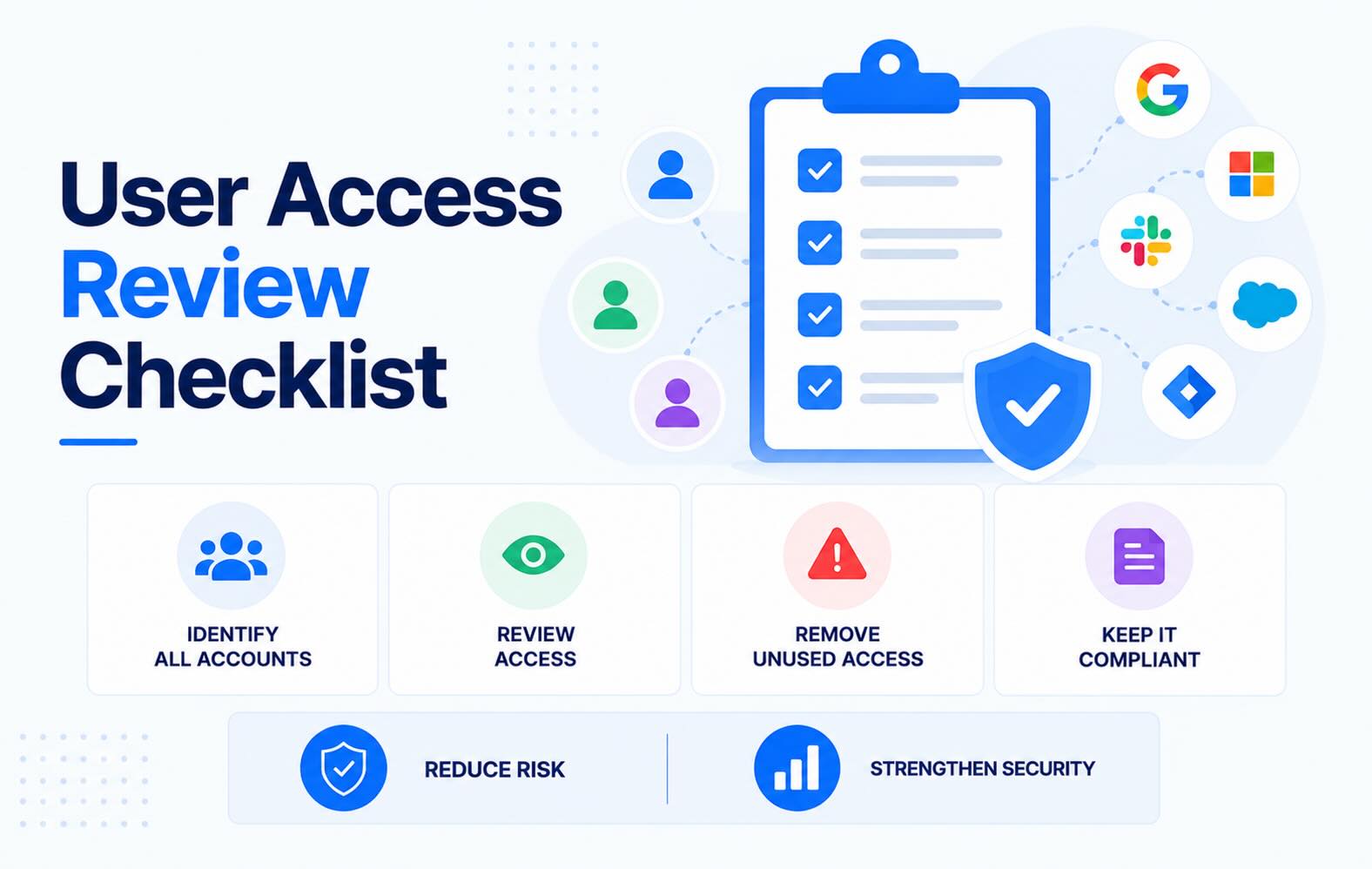
A user access review confirms that every account in every system still belongs to someone who needs it, at the right level of access, and leaves evidence that a named reviewer checked. This checklist walks through a review step by step for Google Workspace, Microsoft Entra ID, Slack and Jira. It shows where each admin console keeps the data you need, and comes with a spreadsheet template that has the evidence columns SOC 2, ISO 27001, SOX and PCI DSS auditors ask for.
- A user access review is a scheduled check of who can access what, with sign-off. For every account: does it still belong to a current employee or contractor, does it still need its level of access, and who confirmed that? Auditors for SOC 2, ISO 27001, SOX and PCI DSS all ask for evidence of it.
- Review everything at least every six months, and admins and audited systems quarterly. PCI DSS v4 has required a review of all user accounts at least once every six months since March 31, 2025 (Requirement 7.2.4). CIS Controls v8.1 asks you to confirm that every active account is authorized at least quarterly. SOC 2, ISO 27001 and SOX let you set the frequency, then test that you keep to it.
- Start with the accounts behind real incidents: ex-employees who are still active somewhere, accounts with no sign-in for 90 days or more, admins, shared and service accounts, and OAuth apps that kept their access after the person who connected them left. Varonis found stale but enabled "ghost users" at 88% of organizations in its 2025 data security report.
- The evidence matters as much as the decisions. Keep the account export you reviewed, a decision and reason for every account, a ticket for every change, a second export that proves the changes happened, and the reviewer's dated sign-off.
- The template is a Google Sheet with tabs for scope, the account-by-account review, privileged accounts, OAuth apps and sign-off. Synk.to can build the account list for it: it connects to Google Workspace or Entra ID read-only, adds apps like Slack and Jira, and flags inactive, orphaned and ex-employee accounts.
What is a user access review?
A user access review (also called an access review, access recertification or access certification) is a periodic check that every account in a system belongs to someone who still needs it, with the right level of access, confirmed by a named reviewer. A complete review covers three layers:
- Accounts. Does this person still work here, and do they still need this system?
- Entitlements. Roles, groups, admin rights and permissions inside each system. A current employee who kept last year's admin rights is a finding too.
- Non-human access. Service accounts, shared mailboxes, API keys, and the OAuth apps employees connected to Google Workspace or Microsoft 365.
A review is not the same as offboarding. Offboarding removes access when a specific person leaves. The review checks every account on a schedule and catches what offboarding missed: the SaaS app nobody knew the leaver used, the contractor whose engagement ended without notice, the admin role granted "temporarily" two years ago.
Skipping it has a track record:
- Ex-employee access. On December 10, 2021, a former Cash App Investing employee downloaded reports with information on about 8.2 million current and former customers. The employee had regular access to those reports in their old job, but downloaded them after their employment ended, Block said in an April 2022 SEC filing (The Record).
- Stale accounts. Varonis's 2025 State of Data Security Report, based on 1,000 real-world IT environments, found that "88% of the orgs have stale but enabled ghost users" (Varonis).
- Forgotten privileged access. In the Midnight Blizzard breach disclosed in January 2024, the attackers used password spraying to compromise "a legacy, non-production test tenant account that did not have multifactor authentication (MFA) enabled." They then used a legacy test OAuth application to grant themselves the Exchange Online
full_access_as_approle, "which allows access to mailboxes" (Microsoft).
How often should you review user access?
Most frameworks expect periodic reviews, but only PCI DSS and the CIS Controls set a number.
- PCI DSS v4. Requirement 7.2.4: review all user accounts and related access privileges, including third-party and vendor accounts; address inappropriate access; management acknowledges that access remains appropriate. Requirement 8.2.6: remove or disable inactive user accounts within 90 days of inactivity. How often: At least once every six months (mandatory since March 31, 2025).
- CIS Controls v8.1. Safeguard 5.1: "Validate that all active accounts are authorized." Safeguard 5.3: disable dormant accounts after 45 days of inactivity, where supported. Safeguard 6.8: review access to confirm all privileges are authorized. How often: Accounts at least quarterly; privileges at least annually.
- SOC 2. The points of focus for criteria CC6.2 and CC6.3: review the appropriateness of access credentials, and of access roles and rules, "on a periodic basis". How often: You set it, then follow it.
- ISO/IEC 27001:2022. Annex A 5.18: access rights are "provisioned, reviewed, modified and removed" in line with your access control policy. Annex A 8.2 covers privileged access rights. How often: You set it in your policy.
- NIST SP 800-53 Rev. 5. AC-2(j): review accounts for compliance with account management requirements. AC-6(7): review user privileges and remove those no longer needed. How often: Organization-defined.
- HIPAA Security Rule. 45 CFR 164.308(a)(4)(ii)(C): "establish, document, review, and modify a user's right of access". How often: Not specified.
- SOX (Section 404). The law never mentions access reviews. Auditors test them as an IT general control over systems that feed financial reporting. How often: Quarterly is the common practice for those systems.
Sources: PCI DSS, CIS Controls, AICPA Trust Services Criteria, ISO/IEC 27001, NIST SP 800-53, 45 CFR 164.308.
A workable default: review admin accounts, and every system in audit scope, quarterly. Review everything else every six months, which also meets PCI DSS 7.2.4. Between reviews, check access whenever someone leaves or changes role, and watch for new orphaned accounts as they appear rather than once a quarter.
The user access review process in 6 steps
- Scope. List the systems in scope, their owners and their reviewers, and pull the HR list of current staff and recent leavers.
- Export. Get every account from every system, with its role, admin rights, status and last sign-in.
- Match. Tie each account to a person in the HR list. Accounts with no match are orphan candidates.
- Review. The reviewer decides keep, change or remove for every account, with a reason.
- Fix and verify. Make the changes, then export again to prove they happened.
- Sign off. The reviewer and an approver sign, the evidence gets filed, and the next review goes on the calendar.
User access review checklist
Use this as the working checklist for each review cycle. The template's tabs follow the same order.
1. Before the review: scope and owners
- List every system in scope. Start with the identity provider (Google Workspace or Entra ID), then collaboration and engineering tools (Slack, Jira, GitHub), then anything that holds customer, financial or HR data.
- Include apps that don't use single sign-on. Suspending someone in the identity provider doesn't touch accounts that have their own passwords.
- Name an owner and a reviewer for each system. The reviewer needs to know what each role means, and nobody reviews their own access.
- Get the HR source of truth. Export current employees and contractors with their manager and department, plus everyone who left or changed roles since the last review.
- Set thresholds before you look at the data. Decide what counts as inactive and which roles count as privileged. PCI DSS uses 90 days of inactivity and the CIS Controls use 45. Microsoft calls 90 to 180 days "a reasonable window" for many organizations (Microsoft Learn).
- Record the review period and due date. Auditors check that the review happened on schedule, not only that it happened.
2. Build the account inventory
- Export every account from every system, with username, name, account type, role or group, admin rights, status and last sign-in or last-active date. The next section shows where each console keeps this.
- Keep proof that each export is complete. Note who ran it, when and with which filters, and save a screenshot of the console's total user count. SOX auditors treat these exports as information produced by the entity (IPE) and test whether they were complete and accurate.
- Include non-human identities: service accounts, shared mailboxes, API keys and tokens, and the OAuth apps users connected to Google Workspace or Entra ID.
- Match every account to a person in the HR list. An account with no match is an orphan candidate. An account matched to a leaver is an ex-employee account.
3. Review every account
- Ex-employees still active anywhere: remove. If the data must be kept, suspend or archive the account instead of leaving it active.
- No sign-in past your threshold: ask the manager whether it's still needed, then remove or suspend it.
- Role changes: people who move teams keep their old access by default. Remove what the new role doesn't need.
- Excess privileges: admin, owner and super admin roles held by people who don't administer the system. Downgrade them to standard roles.
- Guests and contractors: check each one against an active contract and an internal sponsor, and remove them when the engagement has ended.
- Shared and service accounts: each needs a named owner, a reason to exist, and a credential that was rotated after anyone with access to it left.
- OAuth apps and integrations: confirm each app is approved, its scopes match what it does, and the person who authorized it still works here.
- Segregation of duties: in finance systems, check that nobody can both create and approve the same transaction, for example add a vendor and approve a payment to it.
- A decision and a reason for every account: keep, change or remove. "Keep" needs a reason too, or reviewers start approving everything.
4. Fix and verify
- Open a ticket for every change and record it next to the decision.
- Block sign-in at the identity provider first, then remove the account inside each app. Blocking single sign-on stops new logins, but it doesn't delete the app's own account, its API tokens or its open sessions.
- Revoke tokens, not just accounts. Google's checklist for a departing employee lists OAuth tokens, app passwords and security keys as separate steps, because changing a user's password revokes OAuth tokens only "for accessing certain products" (Google).
- Export again after the changes. A before-and-after pair of exports is the strongest evidence that the review changed something.
- Set a deadline for removals, such as five business days after the decision, and track overdue items.
5. Document and sign off
- The reviewer signs and dates each system's review, and the IT or security lead approves the whole cycle.
- File the evidence together: the before export, decisions with reasons, tickets, the after export, sign-offs and exceptions.
- Log every exception with an owner and an expiry date. A permanent exception is a policy change, not an exception.
- Keep the evidence for at least the full audit period.
- Schedule the next review, and note what to change in the process before it starts.
User access review procedure for Google Workspace, Entra ID, Slack and Jira
Where to find the account data in each console, as of October 2026.
Google Workspace
- Accounts and last sign-in. In the Google Admin console, open Users. The Last sign in column shows approximate times like "2 months ago," or "Hasn't signed in" for accounts that were never used. The data can lag "from a couple of hours up to 3 days" (Google).
- Admins. Go to Menu → Account → Admin roles, point to Super Admin and click View admins. Do the same for delegated roles. Google recommends "more than one super administrator account, each managed by a separate individual" (Google).
- OAuth apps. Menu → Security → Access and data control → API controls lists the third-party apps that have accessed your Google data (Google). The console doesn't rate how risky each app's scopes are, so check those yourself. Our OAuth app audit guide walks through that step by step.
Microsoft Entra ID
- Accounts and last sign-in. In the Microsoft Entra admin center, go to Entra ID → Users → Manage view → Edit columns, add Last interactive sign-in time, then filter for dates before your threshold. Microsoft notes that "there isn't a built-in report for inactive user accounts." Reading
lastSuccessfulSignInDateTimethrough Microsoft Graph requires Entra ID P1 or P2 (Microsoft Learn). - Admins. Under Roles & admins, list who holds Global Administrator and the other privileged roles.
- Third-party apps. Under Enterprise apps, review the apps users and admins consented to, and the permissions each one holds.
- Built-in reviews cost extra. Entra's own access reviews require Microsoft Entra ID Governance licenses "for all employees who are reviewing access or having their access reviewed," though some capabilities may work with Entra ID P2. Account Discovery, which finds orphan accounts in connected apps, requires Entra ID Governance or Entra Suite (Microsoft Learn, updated October 2026).
Slack
- Accounts and roles. Click Admin in the sidebar, then Workspace settings → People, to see every member and deactivate accounts. Workspace Admins can deactivate members and guests, Workspace Owners can also deactivate admins, and only the Primary Owner can deactivate owners (Slack). To list owners and admins, filter the People directory by Account type (Slack).
- Activity. On paid plans, Workspace analytics → Members shows member activity. Pick the columns you need with Edit columns and download them with Export CSV. By default, only Workspace Owners and Admins can see member analytics (Slack).
- Watch for: single-channel and multi-channel guests whose project ended, and owners who left the company.
Jira and Confluence
- Accounts and activity. In Atlassian Administration, go to Directory → Users → Export users. The CSV includes user status, org role, a "Last seen in" column for each app, each user's role per app and their group memberships. Atlassian defines last seen as the date the user last viewed the app "for a minimum of 2 seconds" (Atlassian).
- Admins. Check the organization admins and each product's admin roles and groups.
Privileged user access review
Admin accounts get the most attention from auditors and from attackers, so review them separately from the general review, at least quarterly. A privileged user access review (or privileged access review) checks:
- Every privileged role in every system: Google Workspace super admins and delegated admin roles, Entra Global Administrators and other privileged roles, Slack owners and admins, Atlassian organization and product admins, and admin access to finance and HR systems.
- That each holder still needs the role for their current job. Remove roles granted for a one-off task.
- Separate admin accounts. Google recommends giving each super admin "2 accounts: Their own super admin account and a separate account for daily activities" (Google).
- The strength of MFA. Google calls security keys "the most secure form of 2SV" for admin accounts.
- The count. Keep at least two super admins so one can recover the other, and no more than you can justify.
- Privileged non-human access: service accounts, and OAuth apps with admin-level or tenant-wide permissions. In the Midnight Blizzard breach, a legacy test OAuth app was how the attackers reached corporate mailboxes.
- Just-in-time access where you can. In Entra ID, Privileged Identity Management replaces standing admin roles with eligible assignments that are activated when needed. It requires Entra ID P2 or Entra ID Governance.
Don't skip OAuth apps and AI tools
A review that only covers accounts misses the access employees hand out themselves. Every "Sign in with Google" click and every Microsoft consent screen can give an app a token to read mail, files or calendars, and none of those grants show up in an account export.
For each connected app, record who authorized it, which scopes it holds, whether IT approved it and whether the person who authorized it still works here. AI notetakers are the fastest-moving part of this list: they ask for calendar access, and one user's consent can put every attendee of their meetings on the recording. See how to detect and stop AI notetakers and our shadow AI detection page.
User access review template
The template is a Google Sheet with six tabs that follow the checklist:
- Read me: how to run a cycle, the decision and flag definitions, and review frequencies by framework.
- Scope: systems, category, owner, reviewer, frameworks in scope, data sensitivity, whether the system uses SSO, review frequency, and last and next review dates.
- Access review: one row per account, with system, account, name, account type, role, privileged (yes or no), HR status, manager, last sign-in, days inactive (calculated), flag, reviewer, decision (keep, change or remove), reason, ticket, date fixed and who verified it.
- Privileged accounts: role, why it's needed, separate admin account (yes or no), MFA method, last used and decision.
- OAuth apps: app, publisher, scopes, risk tier, users with access, who authorized it, whether that person still works here, approval status, owner and decision.
- Sign-off: per system and cycle, the accounts reviewed and the keep, change and remove counts (calculated from the Access review tab), changes completed, reviewer and approver sign-off, evidence location and exceptions.
Open the user access review template (Google Sheets)
The link opens a view-only version. Choose File → Make a copy to get your own editable copy, or File → Download for an Excel file. Make one copy per review cycle (for example, "UAR 2026-Q4"). Paste each system's export into the Access review tab, filter by flag, and work through the decisions. The decision, flag and status columns use dropdowns, which keeps the filters clean and lets the Sign-off tab count the decisions.
User access review policy: what to put in writing
Auditors test your reviews against your own policy, so the policy should be specific enough to test. A short one covers:
- Scope: every system that stores or processes customer, financial, employee or source-code data, including SaaS apps without single sign-on.
- Frequency: privileged accounts and in-scope systems quarterly; everything else every six months; plus a check whenever someone leaves or changes roles.
- Roles: system owners provide the exports, managers or system owners review, and the IT or security lead approves. Nobody reviews their own access.
- Inactivity: accounts with no sign-in for 90 days are disabled unless the owner documents a need.
- Timelines: removals happen within five business days of the decision, and a leaver's access is removed by the end of their last day.
- Evidence: exports, decisions with reasons, tickets, after-exports and sign-offs, kept for at least the audit period.
- Exceptions: approved by the security lead, each with an owner and an expiry date, and re-checked every cycle.
How auditors test a user access review
A user access review audit usually checks the same few things, whatever the framework:
- Timeliness: did each review happen within the frequency your policy sets?
- Completeness: did the export include every account? This is the IPE test, and screenshots and export metadata answer it.
- Reviewer independence: did the right person review, and did anyone approve their own access?
- Follow-through: auditors pick a sample of "remove" decisions and trace each one to a ticket and to the system itself.
- Leavers: many auditors also sample people who left during the period and check how quickly their access was removed.
- SOX user access reviews: for financial systems such as the ERP, billing and payroll, expect extra attention on privileged access and segregation of duties.
- PCI DSS: Requirement 7.2.4 asks for management to acknowledge that access remains appropriate, so make that sign-off explicit.
The usual gaps are predictable: reviews done late, exports with no proof of completeness, "keep" decisions with no reasons, removals that were decided but never done, reviewers approving their own access, and service accounts left out of scope.
User access review best practices
- Review against HR data, not memory. The HR list decides who is a current employee. The reviewer decides what access each one needs.
- Tier systems by risk. Quarterly for privileged accounts and in-scope systems, every six months for the rest.
- Review entitlements, not just accounts. Role and group changes leave people with access their new job doesn't need.
- Make "keep" cost a sentence. Requiring a reason for every keep decision is the cheapest fix for rubber-stamping.
- Monitor between reviews. Alerts on new orphaned accounts, new admins and new risky OAuth grants surface problems when they appear, not at the next quarterly review.
- Fix at the identity provider first, then in each app.
- Automate the inventory, not the judgment. Tools should build and refresh the account list. People should make the keep, change or remove decisions.
- Keep each cycle's evidence in one folder, named by system and quarter, so you can answer audit requests from one place.
If spreadsheets stop scaling, compare user access review tools. Enterprise IGA suites with full review campaigns cost far more per user than lightweight tools (see our identity governance pricing guide).
Where Synk.to fits
Synk.to's user access review software takes the slowest part of the checklist, building the inventory, off your plate:
- Every account in one table. Connect Google Workspace or Microsoft Entra ID read-only, plus apps like Slack, Jira, Confluence, Zoom, Asana and BambooHR, and every account across them appears in one table.
- Flags to start from: inactive accounts (no sign-in for 90 days or more), orphaned accounts and ex-employee accounts.
- The OAuth layer: every OAuth app, AI tool and Apps Script project connected to your identity provider, with each scope rated Critical, High, Medium or Low.
- Monitoring between reviews: alerts on new orphan users, new risky apps and new risky scopes, plus a weekly digest.
The keep, change and remove decisions and the sign-offs stay in the template, where your auditor expects to find them, and removals happen in each system. If you also sync users and groups with Synk.to, which needs write access, people who leave or change teams are removed or adjusted in the synced apps automatically. It costs $1 per user per month.
FAQs
What is a user access review?
A user access review is a periodic check that every account in a system belongs to someone who still needs it, with the right level of access, confirmed by a named reviewer. It covers user accounts, roles and admin rights, and non-human access such as service accounts and OAuth apps. Auditors for SOC 2, ISO 27001, SOX and PCI DSS expect evidence that it happened.
How often should user access reviews be performed?
At least every six months for all accounts, and quarterly for privileged accounts and systems in audit scope. PCI DSS v4 has required a review at least once every six months since March 31, 2025, and CIS Controls v8.1 asks you to confirm every active account is authorized at least quarterly. SOC 2, ISO 27001 and SOX let you set the frequency, then test that you keep to it.
What is a privileged access review?
A privileged access review is a user access review limited to admin and other high-risk access: Google Workspace super admins, Entra ID Global Administrators, Slack owners and admins, and service accounts or OAuth apps with tenant-wide permissions. Run it at least quarterly, and check that each role is still needed, sits on a separate admin account and is protected by strong MFA such as security keys.
Does SOC 2 require user access reviews?
SOC 2 doesn't prescribe specific controls or a frequency. But the points of focus for criteria CC6.2 and CC6.3 call for reviewing access credentials, and access roles and rules, on a periodic basis. A documented, periodic user access review is the usual way to meet them. Pick a frequency, write it into your policy, and keep evidence for every review in the audit period.
What evidence do auditors want from a user access review?
The account export you reviewed, with proof it was complete; the reviewer's decision and reason for each account; a ticket for every change; a second export showing the changes were made; and dated sign-off by the reviewer and an approver. Record exceptions with an owner and an expiry date.
Who should perform a user access review?
Whoever understands what the access means: usually the employee's manager for business apps and the system owner for technical systems, with the IT or security lead approving the cycle. Nobody should review their own access.
What is the difference between a user access review and offboarding?
Offboarding removes access when a specific person leaves. A user access review checks every account on a schedule and catches what offboarding missed: apps nobody knew the person used, contractors whose engagements ended without notice, and access that piled up through role changes.
How does Synk.to help with user access reviews?
Synk.to builds the account inventory for you. Connect Google Workspace or Microsoft Entra ID read-only, plus apps like Slack, Jira, Confluence, Zoom, Asana and BambooHR, and every account appears in one table, with inactive, orphaned and ex-employee accounts flagged. It also lists every OAuth app and AI tool connected to your identity provider with scope risk tiers, and alerts you to new orphan users between reviews. Decisions and sign-off stay in the template. It costs $1 per user per month. Start free.