Notetakers spread like viruses: How to detect and stop them
AI notetakers like Otter, Read AI and Fireflies spread through meetings. How to detect them in Google Workspace and Entra ID and stop the spread.

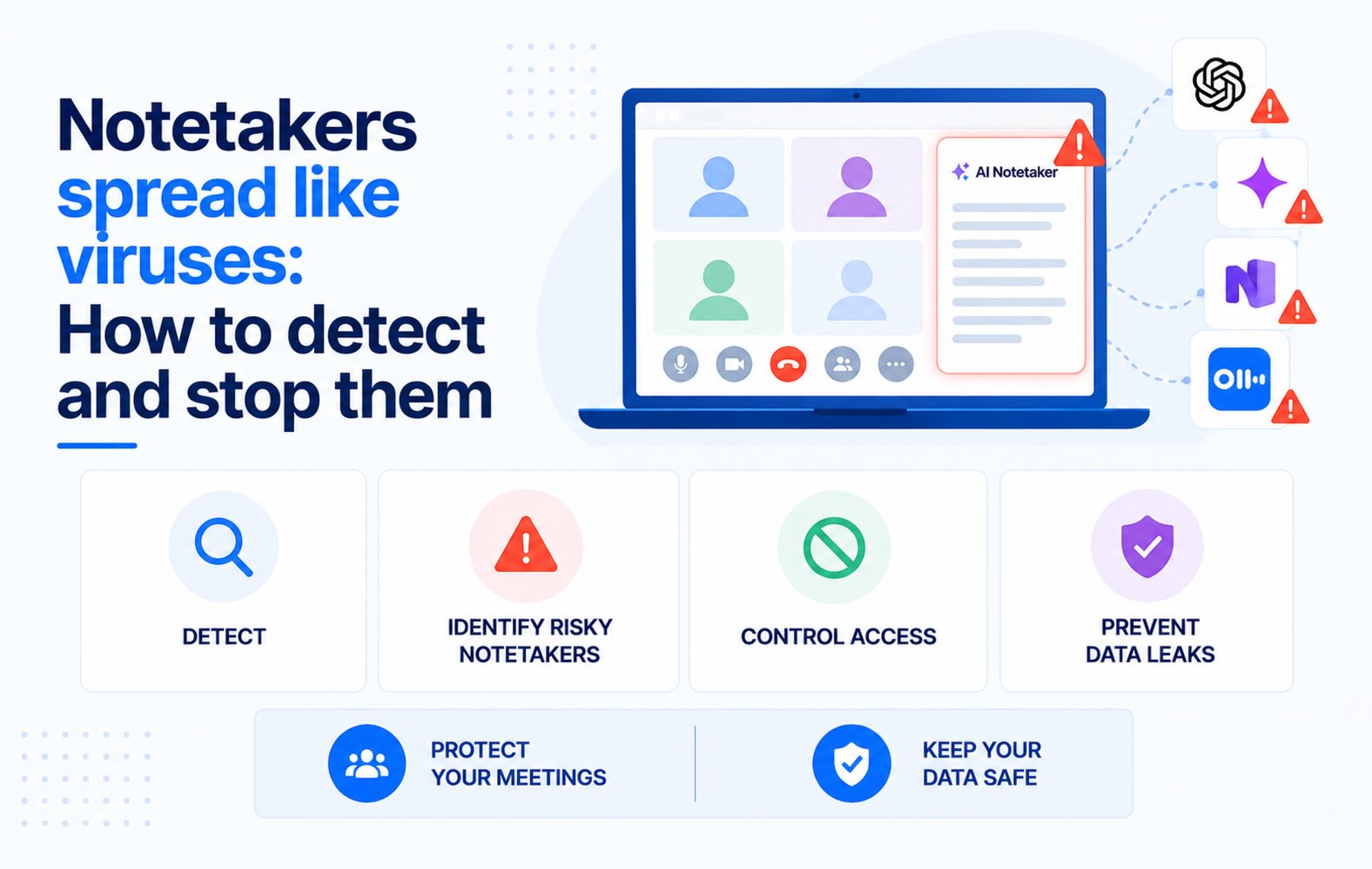
AI notetakers like Otter.ai, Read AI and Fireflies.ai rarely come in through procurement. They come in through meetings: one employee connects a calendar, a bot starts joining calls, recaps land in every attendee's inbox, and some of those attendees sign up too. This guide explains how that loop works, what it exposes, how to find every notetaker connected to Google Workspace or Microsoft Entra ID, and how to stop the spread for one user or the whole company.
- AI notetakers spread through meetings, not purchases. Read AI joins every meeting on a connected calendar by default, Otter emails a summary to all calendar guests, and both ask recipients without an account to sign up to read it. The loop is the growth model.
- One person's consent exposes everyone in the room. The bot records customers, candidates and colleagues who never agreed to it. In August 2026, a federal judge let wiretapping claims over exactly that proceed against Otter.ai, which denies them.
- Detection starts in your identity provider. Google Workspace OAuth logs and Entra ID consent grants show who connected which notetaker, with which scopes. Synk.to adds a dedicated Notetaker category and an alert that fires when a user grants scopes to, or even signs in to, a newly discovered notetaker.
- Stopping it takes layers: block unapproved notetakers at the identity provider, revoke the tokens that already exist, keep outside bots in the lobby, and give people one approved notetaker so they stop looking for another.
- Lobby controls alone won't hold. Teams and Zoom added bot defenses in 2026, but bot-free notetakers like Granola record from the user's laptop and never reach a lobby. Granola only supports Google and Microsoft sign-in, so it still shows up in your identity logs.
Why AI notetakers spread like viruses
Most shadow IT spreads one user at a time: someone signs up for a tool, uses it alone, and maybe tells a colleague. AI notetakers are built differently. Their output, the meeting recap, goes to everyone on the invite, and every recap is a chance to recruit the next user. An Otter user put it bluntly in a January 2025 r/sysadmin thread that the class action against Otter.ai later quoted: "[Otter's] user acquisition approach is basically to spread like a virus." Most new users, the post adds, are "just there for the meeting notes (at the prompting of a trusted colleague/earlier victim)" (consolidated complaint, ¶94).
It works. A third of US workers (33.4%) have had an AI notetaker in their work meetings, and only 34.7% of them say they were always asked for permission, according to a July 2026 Pollfish survey of 500 workers commissioned by Kolmogorov Law (Stacker). Otter reported more than 25 million users in March 2025 (Otter.ai). Fireflies reported 20 million people across more than 500,000 organizations when it passed a $1 billion valuation in June 2025 (Business Wire).
The infection loop
The vendors document every step themselves:
- Patient zero signs in with a work account. An employee signs up with Google or Microsoft and connects a calendar so the tool can find meeting links. Otter's IT setup guide lists the Microsoft Graph permissions it requests, including
Calendars.ReadandContacts.Read(Otter.ai). Read AI says it "requests full calendar access" (Read AI). - The bot joins meetings on its own. "By default, Read will join all meetings on your calendar" (Read AI). Fireflies' auto-join "is set to All meetings by default" (Fireflies). Once a calendar is connected, "Otter Notetaker automatically joins scheduled events" (Otter.ai).
- Recaps reach everyone on the invite. With Otter, "you and all calendar guests will receive a Meeting Summary email within 2 hours after the meeting ends", and "by default, the meeting summary is enabled for all accounts" (Otter.ai). Fireflies' recap setting defaults to "Everyone on the invite", which sends the recap "to all calendar invitees (internal + external)" (Fireflies).
- Recipients become the next hosts. An Otter guest without an account "will need to create one first before viewing the conversation", using the link in the summary email. Read AI spells out what happens after that: "Non-users receive an invitation to sign up so they can view the summary," and "once your account exists, Read AI may auto-join your meetings and send reports under your name," depending on the settings chosen during onboarding (Read AI).
Each new user brings a new calendar full of new meetings and new attendees, inside your company and in every company you meet with. Then the loop starts again.
Why it outruns ordinary shadow IT
- It's the growth model, not a bug. Fathom's CEO credits "word of mouth and viral adoption": "When you bring Fathom into a meeting with five other people, they all experience its value" (Pulse 2.0, June 2026). Read AI's CEO described the pattern on the SaaS Club podcast: one person sets up an account, then several more do, and then the IT team asks, "hey, what is this?" (SaaS Club).
- Anyone on the invite can bring one. Read AI's guidance, quoted by Chapman University's IT blog under the headline "Being stalked by Read.ai?", says the bot often appears because "somebody else invited to your call is also using Read" (Chapman University, July 2025).
- The owner doesn't have to attend. tl;dv's "All meetings" option records "all of your internal and external meetings, even if you don't attend" (tl;dv). Read AI shares notes with everyone on the calendar event "regardless of whether or not they attend" (Read AI).
- Universities hit it first. The University of Washington blocked Read AI in Zoom and then, in January 2025, in Teams (UW-IT). Case Western Reserve blocked Fireflies.ai, Read.ai and Fathom in September 2025 because "they often attempt to join future meetings by default" (Case Western Reserve).
- Even the built-in notetaker is going automatic. On July 16, 2026, Google added an automatic note-taking setting for Gemini in Meet. The admin setting is on by default for Business Standard and Business Plus and off for Enterprise plans, and users get the option "For all meetings I host with 3+ guests" from September 21, 2026 at the earliest (Google Workspace Updates). Gemini's notes stay inside your Workspace tenant, but it still deserves a deliberate decision.
What a notetaker outbreak exposes
- Your calendar, not just your meetings. Read-only calendar access exposes "all event details including private events, attendees, and locations". That's how Synk.to's scope risk model describes
calendar.readonly, which it rates Medium; full calendar access is rated High. - Every conversation the bot joins. Board prep, HR investigations, legal calls, pricing negotiations and interviews all get recorded if they're on a connected calendar with a meeting link.
- What people say when they think the meeting is over. In September 2024, Alex Bilzerian posted that after a Zoom call with a venture capital firm, Otter "automatically emailed me the transcript, including hours of their private conversations afterward" (X). The investors had discussed their firm's "strategic failures and cooked metrics", and Bilzerian walked away from the deal (complaint, ¶64). A New Jersey gender-bias suit alleges a Fireflies bot stayed on a termination call after the employee left, then emailed her the transcript of what was said next (The Employer Handbook, September 2026).
- People who never consented. The consolidated class action against Otter alleges the company "does not obtain prior consent, express or otherwise, of persons who attend meetings where the Otter Notetaker is enabled", and that it used their conversations to train its speech-recognition models without disclosure (complaint, ¶14). On August 13, 2026, Judge Eumi K. Lee of the Northern District of California let the federal Wiretap Act, California Invasion of Privacy Act and Illinois biometric privacy claims proceed. The court found the plaintiffs "plausibly allege that Otter independently collects, retains, and uses communications for its own commercial purposes" (order). Otter denies the allegations, and the case continues. About 11 US states, including California, Florida, Illinois and Washington, generally require every party's consent to record (RCFP).
- Data you no longer control. Transcripts sit in the vendor's cloud under the vendor's retention and AI terms, and some notetakers now reach past meetings. Read AI's privacy policy says that if a user connects a Google account, it may collect Calendar data, Gmail messages, Drive content and Chat data, and use data for "training personalized AI and/or ML models" (Read AI). Blocking the app later doesn't delete what's already there. A vendor breach also becomes your breach, as the Vercel incident showed with an AI tool's OAuth grant.
- Access that outlives employment. In a case reviewed by Ontario's privacy commissioner, a physician had left a hospital more than a year earlier, but the meeting organizer never removed him from a calendar invite, and he had signed up for Otter with his personal email. On September 23, 2024, his bot joined virtual hepatology rounds and emailed the transcript to the participants, 12 of whom had also left the hospital. Seven patients' names, diagnoses and treatment information were exposed. The commissioner recommended lobbies for meetings that discuss patient data and offboarding that revokes "access to systems and calendar invitations" (Carters). Notetaker cleanup belongs in offboarding, next to the SaaS user audit.
How to detect AI notetakers with native admin tools
You can measure the spread with tools you already have. Each source answers a different question, so use more than one. For the broader method, see the shadow IT detection guide.
Google Workspace
- List every notetaker with access. In the Admin console, go to Security → Access and data control → API controls → Manage App Access (older consoles say Manage Third-Party App Access) and open Accessed apps. Each app shows its number of users and requested services, such as Google Calendar, Gmail or Drive. Search for Otter, Read, Fireflies, Fathom, tl;dv and Granola, or use Download list for a CSV. The list lags: Google updates it "48 hours after a token is granted or revoked" (Google).
- See who connected each one, and when. Reporting → Audit and investigation → OAuth log events filters by application name, scope and user, and keeps six months of events (Google).
- Find bots in your meetings. Meet log events record every participant's name. For anonymous participants, "the Actor Name field is the name submitted by the user", and a separate field flags participants from outside the organization (Google). Look for default bot names like "[Name]'s Notetaker (Otter.ai)", "Fireflies.ai Notetaker" and "read.ai meeting notes". It's the only Google log that shows bots brought by outsiders, but treat it as a heuristic: customers can rename their bots.
- Measure the recap traffic. Reporting → Email Log Search finds messages by sender domain for the last 30 days. That shows how many employees receive recaps and sign-up emails from notetaker vendors (Google).
- Find bot addresses on invites. In Calendar log events, filter Event = "Event guest added" and set Target to a bot address such as
fred@fireflies.ai(Google).
Microsoft Entra ID and Microsoft 365
- List consented notetakers. In the Entra admin center, open Enterprise apps → All applications, search for the vendor, and open Permissions. The User consent tab shows grants made by individual employees (Microsoft Learn).
- See who consented, and when. Filter the Entra audit log for "Consent to application" and "Add delegated permission grant" (Microsoft Learn). Entra keeps these for 7 days on the free tier and 30 days with P1 or P2, so export them if you need history.
- Check what your consent policy still allows. If the tenant uses "Let Microsoft manage your consent settings", the default for new tenants, users can no longer consent on their own to permissions such as
Calendars.Read,OnlineMeetings.ReadandMail.Read. Microsoft finished rolling out the calendar and mail restrictions in late 2025 (Microsoft Learn). In practice, a notetaker that asks forCalendars.Read, as Otter does, now needs an admin's approval in those tenants. Grants made before the change are untouched, and tenants on custom consent settings weren't affected. Google Workspace works the other way: its default for unconfigured apps is "Allow users to access any third-party apps". - Watch the Teams lobby. Teams now detects external bots and holds them in the lobby by default (see step 4 under stopping the spread).
Zoom
Zoom's guide, "Blocking bots from joining meetings and webinars", is written for bots "such as AI notetakers" and lists the controls (Zoom). For visibility, Manage → Apps on Account shows the Marketplace apps your users installed. On Business, Enterprise and Education plans, the meetings dashboard also reports blocked bot join attempts.
What each signal catches
- OAuth grants and sign-ins (Google OAuth log, Entra consent). Catch every employee who connected a notetaker with a work account, the scopes granted, and bot-free tools like Granola. Miss bots that outside guests bring, and accounts created with an email and password.
- Meeting logs (Meet log events, Teams lobby, Zoom dashboard). Catch bots that join your meetings, including outsiders'. Miss who owns the bot, and bot-free recording.
- Email logs. Catch recaps and sign-up emails reaching employees. Miss whether anyone signed up.
- Calendar logs. Catch bot addresses added as guests. Miss bots that auto-join from a connected calendar without being invited.
How to detect notetakers with Synk.to
The native checks work, but they're manual. You need to know which names to search for, read four different logs, and repeat it every week while new notetakers keep launching. Synk.to automates the identity side for Google Workspace and Microsoft Entra ID.
- Connect read-only. Synk.to connects to Google Workspace or Entra ID with read-only access and builds an inventory of every OAuth app from your identity provider's logs in about five minutes. Nothing gets installed on laptops.
- Filter by the Notetaker category. Synk.to sorts the apps it discovers into categories, and AI notetakers have their own: Notetaker. One filter shows every notetaker in your tenant, such as Otter.ai, Read AI and Fireflies.ai. For each one you see every user who connected it and every scope they granted, rated Critical, High, Medium or Low.
- Set a category alert for Notetaker. Synk.to's new-tool alert can be scoped to a category. Set it to Notetaker and you're notified when one of your users grants OAuth scopes to a newly discovered notetaker, or even just signs in to one. You hear about patient zero instead of the fiftieth user.
- Catch escalation. The "New risky system discovered" and "New user provided risky scope" alerts, plus the weekly digest, flag notetakers that start asking for more than your calendar, such as Gmail or Drive access.
- Fix it where the access lives. Synk.to shows which users to talk to and which grants to remove. The block and the revoke happen in the Google Admin console or the Entra admin center, using the steps below.
Synk.to sees what passes through your identity provider. It won't see a bot that an outside guest brings into your meeting, or a notetaker account someone created with an email and password. Use the meeting controls and email logs in this guide for those. For the other AI tools Synk.to classifies, see shadow AI detection.
How to stop notetakers from spreading
1. Decide which notetaker you'll allow
A blanket ban pushes people toward bot-free tools you can't see in a lobby. Pick one sanctioned option instead. That can be the assistant built into the meeting platform you already run (Gemini in Google Meet, Zoom AI Companion or Copilot in Teams), or one vendor on an enterprise plan. Enterprise plans can pull your domain's accounts under admin control. Read AI's "Block Non-Workspace Domain Accounts" stops existing personal accounts on your domain from being used at all (Read AI). Otter's domain capture moves free accounts and new sign-ups into your workspace (Otter.ai).
Whichever you approve, change its recap sharing from everyone on the invite to internal attendees (in Otter, auto-share to "Same domain guests"). That way your approved tool doesn't become another company's infection. If you're on Google Workspace Business Standard or Business Plus, review Meet's automatic note-taking setting too.
2. Block unapproved notetakers at the identity provider
Google Workspace. In API controls → Accessed apps, point to each notetaker, choose Change access, and select Blocked ("Can't access any Google service"). Users who try to connect it get an authorization error, and Google's developer documentation says blocking "renders associated refresh tokens invalid" (Google for Developers).
To stop the next unknown notetaker too, open API controls → Settings and change unconfigured third-party apps from "Allow users to access any third-party apps" (the default) to "Allow users to access third-party apps that only request basic info needed for Sign in with Google". Users can still request an app, and their requests land in Apps pending review.
The heavier option is to set Google Calendar to Restricted under Manage Google Services. After that, only apps you've configured as Trusted or Specific Google data can read calendars, and Google says other apps "stop working, and tokens are revoked" (Google). That cuts off every untrusted calendar integration, not just notetakers, so trust the ones you need first.
Microsoft Entra ID. Under Enterprise apps → Consent and permissions → User consent settings, choose "Let Microsoft manage your consent settings" or "Do not allow user consent". Then turn on the admin consent workflow so people request apps instead of working around you (Microsoft Learn). Consent settings "only affect future consent operations", so existing grants need step 3. For a notetaker you've ruled out, set Properties → Enabled for users to sign-in? to No, which "prevents all tokens from being issued for that application" (Microsoft Learn).
3. Revoke the access that already exists
- Google Workspace: for one user, go to Directory → Users → [user] → Security → Connected applications → Remove. Google warns that "once a user signs into the app again, data access is restored", so block the app first. For bulk cleanup, the Admin SDK
tokens.deletecall or GAM (gam all users delete tokens clientid <ClientID>) removes one app's tokens from every user (GAM). - Entra ID: user-consented grants can't be revoked from the portal's User consent tab. Remove them per user under Users → [user] → Applications, or in bulk with
Remove-MgOauth2PermissionGrant(Microsoft Learn).
For a deeper walkthrough of OAuth cleanup, see the OAuth app audit guide.
4. Keep outside bots out of your meetings
Identity controls stop your own users. Meeting controls stop everyone else's bots.
- Microsoft Teams: external bot detection is on by default. Detected bots "are placed in the meeting lobby irrespective of the lobby configuration", and organizers have to admit them. Microsoft also warns that "some external bots may not be detected" (Microsoft Learn). A policy that blocks detected bots automatically is rolling out in October 2026 and is off by default (Microsoft 365 message center, MC1459141).
- Google Meet: keep meetings on Trusted or Restricted access, and in Host controls uncheck "Anyone with the meeting link can ask to join". Google says "anonymous users or third-party bots, like note takers, that attempt to use 'Ask to join' are automatically denied" (Google Workspace Updates). It's a per-meeting host setting with no admin control, so put it in your meeting guidance. Requiring sign-in for meetings your organization hosts also stops bots that join as anonymous guests.
- Zoom: Zoom's bot guide combines an SDK app block list, required sign-in, domain blocks and a waiting room for guests (Zoom). Since March 2, 2026, bots built on Zoom's Meeting SDK can no longer join other accounts' meetings anonymously. With Zoom's on-behalf-of tokens, a bot can join only once its verified owner is in the meeting, and it must leave when the owner leaves (Zoom Developers).
5. Plan for bot-free notetakers
Granola never sends a bot; it records the laptop's microphone and system audio. Otter, Read AI, Fireflies, Fathom and tl;dv all offer desktop or bot-free modes too. None of them shows up in a lobby, so meeting controls can't touch them. The identity layer can: Granola "only supports Google and Microsoft single sign on" and asks for permission "to view events in your calendar" (Granola). Steps 2 and 3 are the only controls that cover bot-free tools.
6. Clean up the vendor side
Blocking stops new data from flowing, but recordings already in the vendor's cloud stay there until someone deletes them. Ask users to delete their recordings and accounts. Don't count on an organization-wide opt-out: none of the major vendors we reviewed lets a non-customer opt its whole domain out.
What does exist works one meeting at a time, through chat commands:
- Any participant can type "stop otter" to remove every Otter notetaker in the meeting (Otter.ai).
- Any participant can type "Opt Out" to make Read AI leave and delete that session's data (Read AI).
- "/ff leave" removes Fireflies, though some platforms require the host to send it (Fireflies).
7. Tell people, then keep watching
Publish a one-page policy: which notetaker is approved, how to request another, that hosts announce recording, and that unknown bots stay in the lobby. Remove former employees from calendar invites when they leave, which is the gap behind the Ontario hospital breach.
Then monitor continuously. New notetakers launch every month, and the next one won't be on your block list. The shadow AI detection guide applies the same playbook to AI tools beyond notetakers.
How to get rid of Otter.ai, Read AI and Fireflies (for individual users)
If a notetaker keeps joining your meetings, first work out whose it is. If it's yours, turn off auto-join and disconnect it. If it belongs to another attendee, remove it from the meeting and ask the organizer to keep it out.
Otter.ai
- Stop auto-join: in Account Settings → Meetings, set auto-join to Meetings I manually select (Bitdefender).
- Stop the recaps: set auto-share to Don't share (Otter.ai).
- Remove it from a live meeting: type "stop otter" in the chat, or remove "[Name]'s Notetaker (Otter.ai)" from the participant list.
- Delete the account: go to Account Settings → Delete Account.
Read AI
- Stop auto-join: by default Read joins every meeting on your calendar. In Read's account settings, turn off auto-join or limit it to meetings you host.
- Remove it from a live meeting: any participant can type "Opt Out" in the chat.
- If it keeps coming back: someone else on the invite uses Read, or you have a second Read account you forgot about (Chapman University).
- Delete the account: select Delete my account in Read's settings.
Fireflies.ai
- Stop auto-join: from the Fireflies home page, open Settings and turn off Auto-join calendar meetings, or choose "Only when I invite fred@fireflies.ai" (Fireflies).
- Skip one meeting: remove
fred@fireflies.aifrom the invite. - Remove it from a live meeting: type "/ff leave" in the chat, or use Remove (Zoom), Remove from the call (Google Meet) or Remove from meeting (Teams) in the participant list (Fireflies).
Disconnect it from your Google or Microsoft account
- Google: go to
myaccount.google.com/connections, select See all connections, pick the notetaker, and choose Delete all connections you have with [app] (Google). - Microsoft work account: in the My Apps portal, hover over the app and select … → Manage your application → Revoke permissions. This only covers permissions you granted yourself (Microsoft).
FAQs
Why do Otter.ai or Read AI keep joining my meetings?
Someone on the invite connected their calendar with auto-join turned on. Read AI joins every meeting on a connected calendar by default, and Otter joins scheduled events once a calendar is connected. The account may be yours, from a sign-up you forgot (often started from a recap email), or another attendee's, including someone outside your company. Check your own settings and connected apps first. If the bot isn't yours, remove it and ask the organizer to restrict who can join.
How do I remove Otter.ai from my whole organization?
Block Otter in Google Workspace API controls or disable it in Entra ID, revoke existing tokens for every user, restrict user consent for new apps, and keep external bots in the lobby. Then ask users to delete their Otter accounts and recordings, because blocking access doesn't delete data Otter already stores.
How do I stop Read AI from joining meetings?
If it's your Read account, turn off auto-join in Read's settings or limit it to meetings you host. If it's someone else's, any participant can type "Opt Out" in the meeting chat to make Read leave and delete that session's data. Admins can block Read AI in Google Workspace API controls or Entra ID, and Teams' external bot detection holds detected bots in the lobby.
Does blocking a notetaker in Google Workspace stop its bot from joining meetings?
Partly. Blocking stops the app from reading your users' calendars, so their bots stop auto-joining. A bot that someone outside your company brings, or one sent to a pasted meeting link, never touches your OAuth settings. Use Meet access settings and host controls for those.
Are AI notetakers legal?
It depends on where the participants are and how consent is collected. About 11 US states, including California, Florida, Illinois and Washington, generally require every party's consent to record a conversation. Bots that join automatically make that consent hard to prove. That's the heart of the class action against Otter.ai, where a federal judge let wiretapping and biometric privacy claims proceed in August 2026; Otter denies the allegations. Privacy suits have also been filed against Fireflies.ai and Granola. This isn't legal advice, so ask counsel before approving a notetaker.
Should we ban AI notetakers completely?
Usually not. People adopt notetakers because recaps are useful, and a ban pushes them to bot-free tools that are harder to see. Approve one notetaker you can govern, block the rest at the identity provider, and monitor for new ones.
How can I tell if a notetaker is in my meeting?
Look for participants with default names like "[Name]'s Notetaker (Otter.ai)", "read.ai meeting notes" or "Fireflies.ai Notetaker", though customers can rename their bots. In Teams, detected bots wait in the lobby for approval. Bot-free tools don't appear at all, so in a sensitive meeting, ask at the start whether anyone is recording.
How does Synk.to detect AI notetakers?
Synk.to connects read-only to Google Workspace or Microsoft Entra ID and lists every OAuth app your users connected, who connected it and which scopes they granted. AI notetakers get their own Notetaker category. A category alert notifies you when one of your users grants OAuth scopes to, or even signs in to, a newly discovered notetaker. Synk.to doesn't revoke access itself; it shows you which grants to remove in the Admin console or Entra. Pricing is $1 per user per month. Start free.