Google Workspace Security Best Practices (2026): An OAuth-First Checklist
A Google Workspace security checklist that starts with third-party apps and OAuth, then covers admin accounts, AI tools, sharing, email and monitoring.

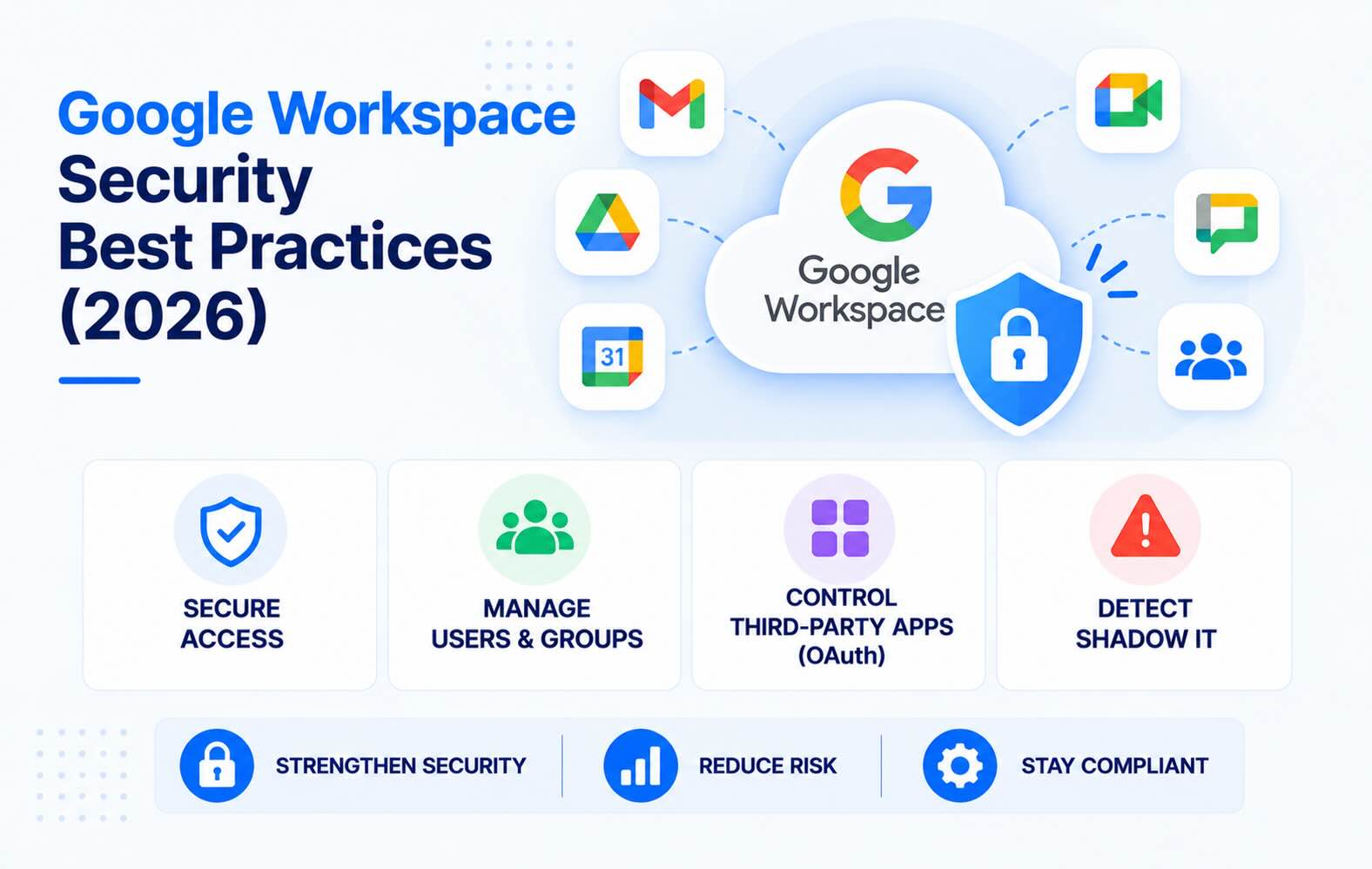
Most Google Workspace security checklists start with passwords and finish with Drive sharing. This one starts with the access most of them skip: third-party apps, AI tools and scripts that users connect with OAuth, which keep working without a password or a fresh sign-in. It lists the Admin console settings to change, in order, for Business and Enterprise editions, as of November 2026.
- Start with OAuth, not passwords. Every app a user connects to Gmail, Drive or Calendar keeps its token until someone removes it. In August 2025, attackers used stolen tokens from the Salesloft Drift email integration to read mail in a small number of Google Workspace accounts.
- Change one default first. Google Workspace lets users connect any third-party app by default. Set Unconfigured third-party apps to allow only apps that request basic sign-in info, then trust the apps you approve.
- Admins need 2-Step Verification, and Google is making it mandatory. Use security keys for super admins, keep at least two super admins, and give each one a separate account for daily work.
- Check the 2026 AI defaults. Since September 29, 2026, Gemini takes meeting notes by default on Business Standard and Business Plus. Third-party AI notetakers and assistants connect through OAuth.
- Audit every quarter. Connected apps, domain-wide delegation, admin roles, 2SV enrollment, external sharing and inactive accounts are all in the Admin console, but Business editions have no single page that checks them for you.
Why OAuth comes first
Passwords and 2-Step Verification protect the sign-in. An OAuth grant skips it. Once a user clicks Allow, the app holds a token and calls Google's APIs from its own servers with the scopes it was given, which can include reading every email, sending mail as the user or editing every file. Nobody signs in again, so there's no login alert and no MFA prompt.
The August 2025 Salesloft Drift breach showed what that means for Google Workspace. Google's Threat Intelligence Group confirmed that the attacker "compromised OAuth tokens for the 'Drift Email' integration" and on August 9, 2025, "used these tokens to access email from a very small number of Google Workspace accounts". Google revoked the tokens and disabled the integration (Google Threat Intelligence).
Google's own security checklist for 100+ users includes "Review third-party app access to core services" and "Create a list of trusted apps". This checklist puts them first, and adds what it doesn't cover: which scopes matter, Apps Script, domain-wide delegation and AI tools.
Not every grant is equal. A few Google scopes and what they allow, using the risk tiers from our Google Workspace OAuth scope reference:
- Critical:
https://mail.google.com/(read, send and delete all mail),gmail.send(send mail as the user),drive(read, change and delete every file),admin.directory.user(manage every user in the domain). - High:
gmail.readonly(read all mail),gmail.settings.sharing(set up silent forwarding),drive.readonly,calendar(full calendar access). - Medium:
gmail.metadata,calendar.readonly,contacts.readonly. - Low:
openid,email,profile(sign-in only).
1. Third-party apps and OAuth
- See what's already connected. In the Admin console, go to Security → Access and data control → API controls → Manage Third-Party App Access. The Accessed apps list shows every app, how many users connected it and which Google services it can reach. Sort by users and by services; an app with Gmail or Drive access and one or two users is often shadow IT. The list updates about 48 hours after a grant or revocation.
- Change the default for unconfigured apps. In API controls → Settings, Unconfigured third-party apps has three options: "Allow users to access any third-party apps" (the default), "Allow users to access third-party apps that only request basic info needed for Sign in with Google", and "Don't allow users to access any third-party apps". The middle option keeps "Sign in with Google" working but stops unreviewed apps from reaching mail and files. Changes can take up to 24 hours (Google Workspace Admin Help).
- Mark the apps you approve. Give each reviewed app an access level: Trusted (all services), Limited (only unrestricted services), Specific Google data (only the scopes you choose) or Blocked.
- Restrict Gmail, Drive and Calendar. Under Google services, set them to Restricted, so only apps you've marked Trusted or Specific Google data can reach them. Google also lets you restrict high-risk scopes separately, such as sending Gmail or deleting Drive files.
- Decide on internal apps and Apps Script. Apps built inside your organization can reach restricted services when Trust internal apps is checked, or when you trust them one by one. Apps Script projects are OAuth apps too: they request scopes and run with their owner's permissions. You can turn Apps Script on or off for the organization; our Apps Script audit guide covers how to review projects.
- Control Marketplace installs. In Apps → Google Workspace Marketplace apps → Apps list → User Install Settings, choose whether users can install any app, only allowlisted apps or none. API controls still decide which Google data an installed app can reach.
- Review domain-wide delegation. Security → Access and data control → API controls → Manage Domain Wide Delegation lists the service accounts and client IDs that can access any user's data without asking them. Keep only entries with a named owner and a current purpose, and trim their scopes. An entry nobody can explain should go.
- Watch new grants. Reporting → Audit and investigation → OAuth log events shows who granted which app which scopes, and when. Review it weekly. The OAuth app audit guide walks through a full review.
2. AI tools and notetakers
AI assistants and notetakers connect through the same OAuth grants as any other app, and they usually ask for broad scopes:
- AI assistants. Claude connectors and ChatGPT apps reach Gmail, Drive and Calendar through OAuth. See what Claude connectors and ChatGPT apps can access.
- Third-party notetakers. Otter, Fireflies, Read AI and Fathom read calendars to join meetings, and some ask for mail or Drive access. See how to detect and stop AI notetakers.
- Gemini in Meet. Since September 29, 2026, automatic note-taking is on by default for Business Standard and Business Plus, and off by default for Enterprise Standard, Enterprise Plus and Frontline Plus. Admins can now limit it to meetings with three or more people (Google Workspace Updates). Check the setting under Apps → Google Workspace → Google Meet.
The settings in section 1 apply to AI tools as well: an assistant that asks for full Gmail access needs the same review as any other app. For a list of which AI tools your users have already connected, see shadow AI detection.
3. Admin accounts and sign-in
- 2-Step Verification for everyone, security keys for admins. Google's checklist says "Require 2-Step Verification for users" and "Enforce security keys, at least for admins and other high-value accounts".
- Expect mandatory 2SV for admins. Google is requiring 2SV on every admin account. It's already enforced for Workspace for Education, Workspace for Nonprofits, Cloud Identity, Android Enterprise and Enterprise editions that use third-party SSO, and super admins get about 90 days' notice. An admin who can't enroll loses access: "the only solution is to remove their admin rights" (Google Workspace Admin Help).
- At least two super admins, each with a daily account. Google recommends "more than one super administrator account, each managed by a separate individual", and giving each one "a separate account for daily activities". Delegate everything else to limited admin roles, and enroll super admins in the Advanced Protection Program (Google Workspace Admin Help).
- Check what replaced password-only access. Google Workspace stopped supporting less secure apps on May 1, 2025; mail clients now use OAuth or app passwords (Google Workspace Updates). Review which users still have app passwords (open the user, then Security), and turn off IMAP and POP if nobody needs them.
- Close accounts when people leave. Suspended users keep their data and are billed like active ones, and apps they connected keep their tokens until you remove them. See how to find and remove orphaned accounts.
4. Sharing and email
- Set Drive sharing. In Apps → Google Workspace → Drive and Docs → Sharing settings → Sharing options, choose whether files can be shared outside the organization, or only with allowlisted domains. Google's checklist also recommends warning users when they share outside the domain, preventing publishing on the web and setting default general access.
- Turn off automatic forwarding. In Apps → Google Workspace → Gmail → End User Access, turn off Automatic forwarding. Existing forwarding rules stop too. Apps holding the
gmail.settings.sharingscope can set up forwarding, which is another reason to restrict Gmail in API controls. - Authenticate and scan mail. Publish SPF, DKIM and DMARC records, and turn on enhanced pre-delivery message scanning, external recipient warnings, and the extra attachment, link and spoofing protections.
- Limit calendar sharing. Limit external calendar sharing and warn users when they invite external guests.
5. Monitoring
- Alert center. Security → Alert center lists alerts for your domain. Set up email notifications by creating alert rules, so suspicious sign-ins and admin changes reach someone.
- Security health page. Enterprise Standard and Plus, Education Standard and Plus, Frontline and Enterprise Essentials Plus include a page that checks your settings against Google's recommendations (Google Workspace Admin Help). Business editions don't have it, so use the audit below.
- Audit logs. Admin log events show who changed which setting. OAuth log events show who connected which app.
How to run a Google Workspace security audit
Every quarter, and after big changes such as a reorganization or an admin leaving:
- Export the Accessed apps list and compare it with last quarter's. Review every new app with Gmail, Drive or Calendar access.
- Review domain-wide delegation entries and their scopes.
- List admins and their roles. Remove roles nobody needs, and check that super admins have security keys.
- Check 2SV enrollment in Reporting → User reports → Accounts, which shows 2SV enrollment and enforcement per user.
- Find inactive and suspended users and decide what to do with each one.
- Check external sharing. The same Accounts report counts files shared publicly, with anyone who has the link, and outside the domain.
- Compare your settings with this checklist, or with the security health page on Enterprise editions.
- Write down each finding with an owner and a date.
The quarterly audit is a snapshot, but new OAuth grants appear every week. Synk.to reads the OAuth log continuously, rates every app by its riskiest scope and alerts you when a new risky app or scope appears.
FAQs
What are the most important Google Workspace security best practices?
Require 2-Step Verification for all users and security keys for admins. Restrict third-party app access in API controls, review domain-wide delegation, and keep super admin accounts few and separate from daily accounts. Limit external Drive sharing, turn off automatic Gmail forwarding, and watch the alert center and OAuth log events.
How do I restrict third-party apps in Google Workspace?
In the Admin console, go to Security, then Access and data control, then API controls. Set Unconfigured third-party apps to allow only apps that request basic sign-in info, mark the apps you approve as Trusted or Specific Google data, and set Gmail, Drive and Calendar to Restricted.
What does the Unconfigured third-party apps setting do?
It decides what happens when a user connects an app you haven't reviewed. You can allow any app (the default), allow only apps that request basic sign-in info, or block all unreviewed apps. The middle option keeps Sign in with Google working without letting new apps read mail or files.
How do I see which apps have access to Google Workspace data?
Open Security, Access and data control, API controls, Manage Third-Party App Access, and view the Accessed apps list. It shows each app, how many users connected it and which services it can reach. For who granted what and when, use the OAuth log events report.
Is 2-Step Verification mandatory for Google Workspace admins?
Google is making it mandatory for all admin accounts. It is already enforced for Workspace for Education, Nonprofits, Cloud Identity, Android Enterprise and Enterprise editions with third-party SSO, and other organizations get notice before enforcement. An admin who can't enroll has to lose their admin rights.
Does Google publish a Google Workspace security checklist?
Yes. Google publishes checklists for small businesses (1 to 100 users) and for medium and large businesses (100+ users). Enterprise, Education, Frontline and Enterprise Essentials Plus editions also include a security health page that checks settings against Google's recommendations.
What is domain-wide delegation, and why is it risky?
Domain-wide delegation lets a service account or app access the data of any user in your domain without asking them. It's needed by some backup and security tools, but an entry that nobody owns, or that holds broad Gmail or Drive scopes, is standing access to every mailbox or file. Review the list every quarter.
How often should you audit Google Workspace security?
Run a full review every quarter and after major changes such as an admin leaving. Check new OAuth grants weekly, because users connect new apps and AI tools far more often than settings change.
How does Synk.to help secure Google Workspace?
Synk.to connects read-only to Google Workspace in about 5 minutes, with no admin rights. It lists every OAuth app, AI tool and Apps Script project your users connected, who authorized each one and which scopes it holds, and rates each app Critical, High, Medium or Low. It alerts you to new risky apps and scopes, sends a weekly digest, and puts AI notetakers in their own Notetaker category. Start free.
Connect Google Workspace or Microsoft Entra ID read-only. Synk.to lists every account, OAuth app and AI tool, and flags inactive, orphaned and ex-employee accounts. $1 per user per month.