How to Manage Third-Party Apps in Google Workspace (2026)
How to control third-party apps in Google Workspace: find connected apps, set Trusted, Limited or Blocked access, restrict Gmail and Drive, review delegation.

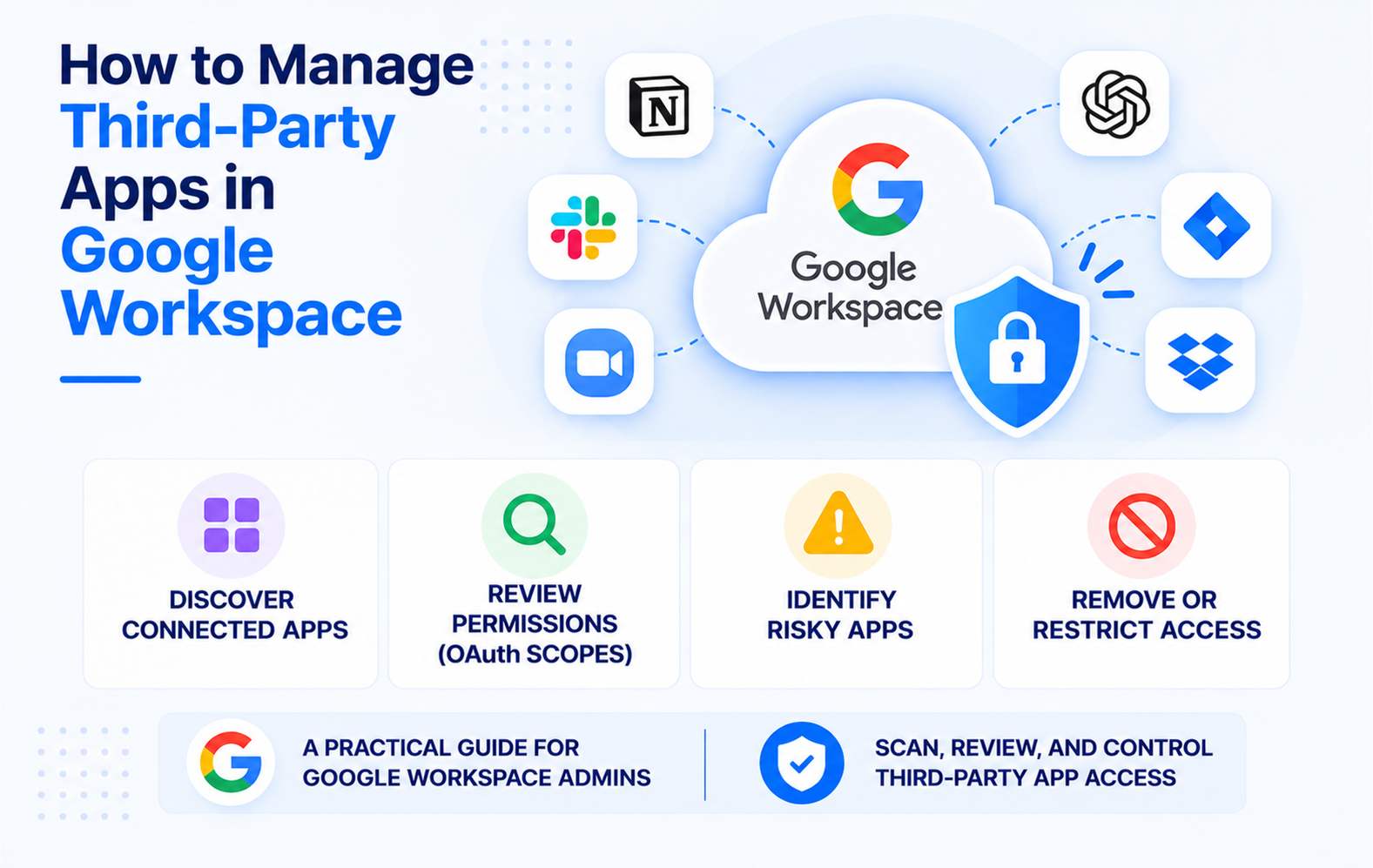
A step-by-step guide to the Admin console settings that decide which third-party apps can reach your users' Gmail, Drive and Calendar: API controls, access levels, the default for new apps, access requests, Marketplace installs and domain-wide delegation. Menu paths are as of November 2026.
- By default, any user can connect any app. "Allow users to access any third-party apps" is the default setting, so every Sign in with Google consent can hand an app your company's mail or files.
- Four access levels decide what an app can reach: Trusted, Specific Google data, Limited and Blocked. You set them per app and per organizational unit in API controls.
- Restrict Gmail and Drive, then trust what you approve. Once a service is restricted, apps you haven't trusted stop working and their tokens are revoked, so mark the apps you need first.
- Let users ask instead of working around you. Google's Apps pending review queue collects requests for blocked apps, and you approve them per organizational unit.
- Marketplace review isn't a security sign-off. Google reviews public listings, but says you're "ultimately responsible for installing and using apps", and API controls override the Marketplace allowlist.
Why third-party apps need managing
An OAuth grant keeps working after the person who approved it forgets about it. Two recent cases started that way:
- Salesloft Drift, August 2025. Attackers used stolen tokens of the Drift Email integration "to access email from a very small number of Google Workspace accounts", Google found (Google Threat Intelligence).
- Vercel, April 2026. The breach began with "a small, third-party AI tool whose Google Workspace OAuth app was the subject of a broader compromise" (Vercel). Our breakdown of the Vercel breach traces the full chain.
Apps reach Google Workspace data in four ways:
- OAuth consent. A user signs in with Google and approves the scopes an app asks for.
- Marketplace installs, by a user or by an admin for the whole domain.
- Domain-wide delegation, which gives an app access to every user's data without asking them.
- Internal apps and Apps Script projects built inside your organization.
Step 1: Find every connected app
Go to Security → Access and data control → API controls, then under App access control click Manage App Access (it's labeled Manage Third-Party App Access in some consoles). You need the Service Settings administrator privilege. Google shows three lists (Google Workspace Admin Help):
- Configured apps: apps you've already set to Trusted, Limited, Specific Google data or Blocked.
- Accessed apps: every app that has accessed Google data, with the number of Users and the Requested services, such as Gmail, Drive or Calendar.
- Apps pending review: apps users have asked you to allow (Step 5).
Click Download list for a CSV that includes the OAuth scopes behind each service. New grants take 24–48 hours to appear.
Start with apps that request Gmail or Drive and have only one or two users: they're usually tools someone signed up for alone. Don't read too much into the Verified column. Google notes that "many well-known apps might not be verified", so an unverified app isn't automatically bad, and a verified one can still hold more access than it needs.
Two more views help:
- Per person: open a user in Directory → Users; their Security tab lists Connected applications (Google Workspace Admin Help).
- History: Reporting → Audit and investigation → OAuth log events records each time a user authorizes an app (Google Workspace Admin Help).
Step 2: Set an access level for each app
From either list, point to an app and click Change access, or check several apps at once. To add an app nobody has used yet, click Configure new app under Configured apps and search by name or OAuth client ID. The options:
- Trusted: can access all Google services, including restricted ones.
- Specific Google data: can request only the scopes you pick. Include the sign-in scopes, or users won't be able to sign in.
- Limited: can access only unrestricted services.
- Blocked: can't access any Google data.
Each setting applies to the organizational units you choose. For example, Google suggests Trusted for the top-level unit and Blocked for a child unit to keep an app away from one team. Prefer Specific Google data for apps that need one or two scopes, and keep Trusted for tools you've actually vetted.
Step 3: Restrict Gmail and Drive
Access levels only bite once services are restricted. In API controls → Manage Google Services, select services, click Change access and choose Restricted. Then only apps set to Trusted or Specific Google data can reach them; Limited apps can't.
Trust the apps you rely on first. Google warns that when you restrict a service, "any previously installed apps that you haven't trusted stop working, and tokens are revoked." Restricting Drive also restricts the Google Forms API.
For Gmail, Drive and Docs, and Chat, Google publishes a list of high-risk scopes, such as full mailbox access (https://mail.google.com/), sending mail and full Drive access. If restricting everything is too disruptive, check For apps that are not trusted, allow users to give access to OAuth scopes that aren't classified as high-risk. Tools that only open files a user picks keep working, while untrusted apps can't read whole mailboxes or drives.
Step 4: Set the default for new apps
API controls → Settings → Unconfigured third-party apps decides what happens when someone signs in to an app you haven't configured:
- "Allow users to access any third-party apps", the default: apps can request unrestricted Google data.
- "Allow users to access third-party apps that only request basic info needed for Sign in with Google": name, email address and profile picture only.
- "Don't allow users to access any third-party apps": nothing works until you configure it.
The middle option suits most companies: Sign in with Google still works everywhere, but unreviewed apps can't reach mail or files. You can set it per organizational unit, and changes can take up to 24 hours.
In the same settings, Trust internal apps lets every app built in your organization reach restricted services. The Apps Script projects your users write are internal apps too, so check them before you tick that box. Our Apps Script audit guide shows how. You can also set a Custom user message that tells people what to do when an app is blocked.
Step 5: Turn on access requests
Restricting new apps works better when people have a way to ask. In the same settings, check Allow users to request access to unconfigured third-party apps. It works only after you restrict unconfigured apps in Step 4.
Requests appear under App access control → Apps pending review, sorted by the number of requests, with the org units that asked and the Google data the app wants (Google Workspace Admin Help). For each app:
- Configure access for up to 10 organizational units at a time, as Trusted, Limited or Specific Google data. Check Notify users who requested access to this app to email them the outcome.
- Dismiss the request, or block the app outright.
Your decision applies to everyone in the organizational unit. A request you don't act on leaves the list after 6 months. Only unconfigured apps can be requested: if a configured app asks for a service you've blocked, the user is simply blocked.
Step 6: Control Marketplace installs
In Apps → Google Workspace Marketplace apps → Apps list → User Install Settings, choose whether users can install any app, only allowlisted apps or no apps (Google Workspace Admin Help). With an allowlist, you can still let users install all internal apps, and admins can install any app for them.
- API controls still win. They "override the allowlist", so an allowlisted app can't reach a restricted service unless you trust it.
- Some services have their own switches: Drive, Chat and Calendar add-ons have separate settings that override the Marketplace one.
- Tightening the setting can break things: users may lose access to apps they already installed.
Are Marketplace apps safe? Google reviews every public listing. Apps that request sensitive scopes must pass OAuth app verification, and apps with restricted scopes, such as all of a user's Gmail, need a security assessment renewed every year. But Google doesn't review internal apps or verify ratings, and it says you're "ultimately responsible for installing and using apps" (Google Workspace Admin Help). Check the Permissions tab before you allowlist anything.
Step 7: Review domain-wide delegation
Domain-wide delegation lets an app or service account "access your Workspace users' data without requiring their consent." Google adds: "the app has access to the data belonging to all of your users" (Google Workspace Admin Help).
In API controls → Manage Domain Wide Delegation (super admins only), go through every client:
- Trim scopes. Click View details for the full list and Edit to remove scopes the tool doesn't use.
- Delete what's done. Migration tools are the classic leftover. Anything that depends on a deleted client stops working immediately, so confirm the owner first.
- Require a second approver. With multi-party approval turned on, adding, editing or deleting a client needs another super admin.
Step 8: Keep watching
The app list changes every time someone signs up for a new tool, and AI tools add new grants every week. A workable rhythm:
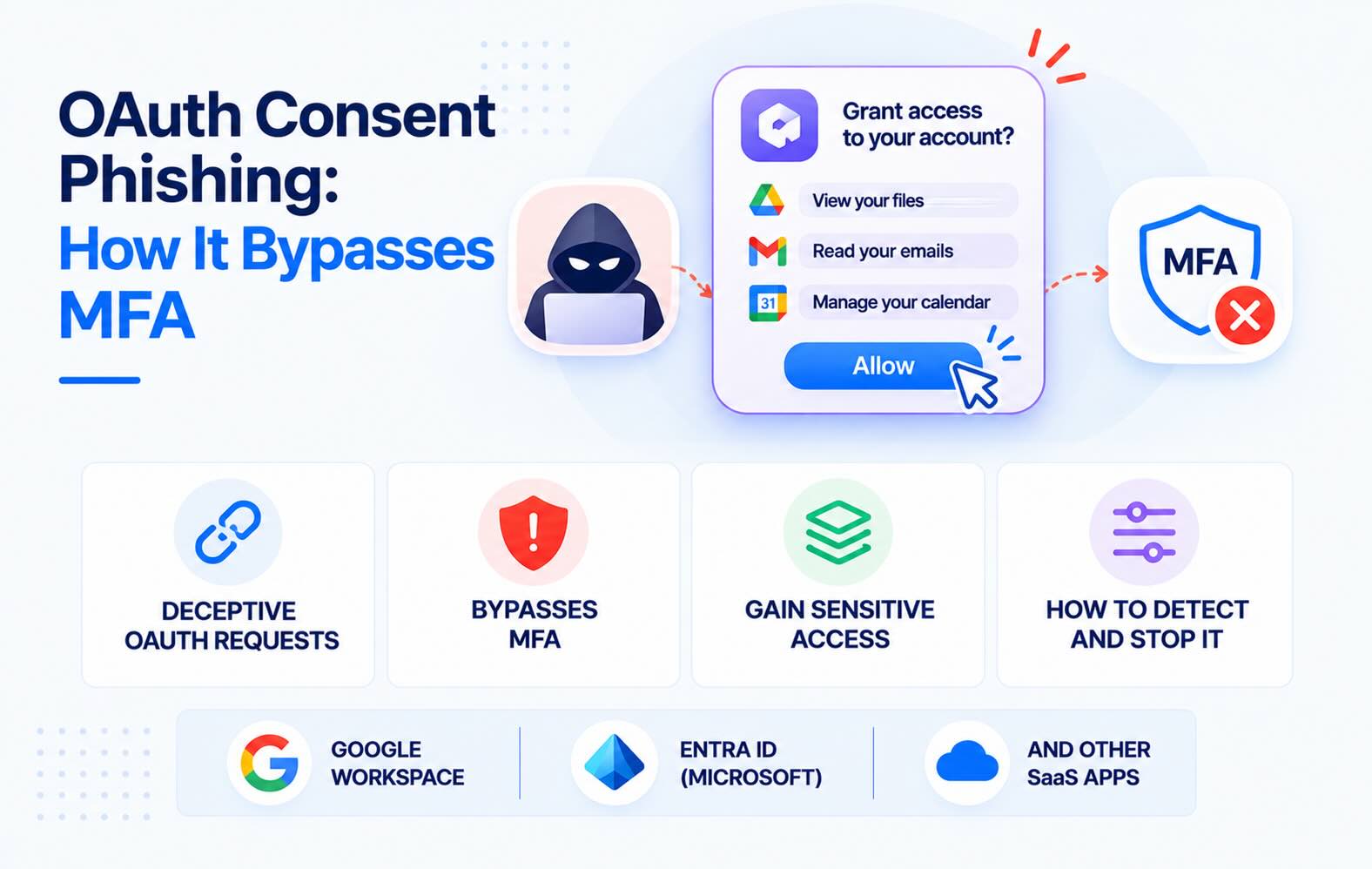
- Weekly: check OAuth log events for new grants, especially unverified apps asking for Gmail or Drive, or one unknown app approved by several people at once, a common sign of OAuth consent phishing.
- Quarterly: review the Accessed apps list, the access levels and domain-wide delegation. The OAuth app audit guide has a full checklist.
- When someone leaves: remove their connected apps as part of offboarding.
Google's lists tell you what was granted, but not what each scope means for risk, and they can lag by up to 48 hours. Synk.to connects read-only to Google Workspace in about 5 minutes, with no admin rights. It lists every OAuth app, AI tool and Apps Script project, who authorized it and which scopes it holds, rates each one Critical to Low, and sends alerts and a weekly digest. You change the access in API controls.
FAQs
How do I see which third-party apps have access to Google Workspace?
In the Admin console, go to Security, Access and data control, API controls, and open Manage App Access. The Accessed apps list shows each app, how many users connected it and which Google services it requested. Download the list as a CSV to see the scopes. New grants appear within 24 to 48 hours.
How do I block a third-party app in Google Workspace?
In API controls, open Manage App Access, point to the app and click Change access, then choose Blocked for your whole organization or for specific organizational units. A blocked app can't access any Google data, and users can't sign in to it with their managed Google account.
What is the difference between Trusted, Limited and Specific Google data?
A Trusted app can access all Google services, including restricted ones. A Limited app can access only unrestricted services. Specific Google data lets an app request only the scopes you choose, which is the safest way to approve an app that needs one or two permissions.
What happens to existing apps when I restrict a Google service?
Apps that you haven't set to Trusted or Specific Google data lose access to that service, and Google revokes their tokens. Mark the apps your teams rely on before you restrict Gmail, Drive or Calendar.
What does the Unconfigured third-party apps setting do?
It decides what happens when a user signs in to an app you haven't configured. The default allows any app. The safer middle option allows only apps that request basic sign-in information, and the strictest blocks all unconfigured apps.
Can users request access to blocked apps?
Yes. Restrict unconfigured apps, then check Allow users to request access to unconfigured third-party apps. Requests appear under Apps pending review, where you can allow, dismiss or block each app per organizational unit. Education editions have their own request settings.
Are Google Workspace Marketplace apps safe?
Google reviews public Marketplace listings and requires extra verification for apps with sensitive or restricted scopes, but it doesn't review internal apps or verify ratings, and it leaves responsibility with you. Check each app's permissions before allowing it, and use API controls to limit what installed apps can reach.
What is domain-wide delegation?
It lets an app or service account access the data of every user in your domain without asking them. Backup, migration and security tools often need it. Review the list in Manage Domain Wide Delegation regularly, trim scopes and delete clients nobody uses.
How does Synk.to help manage third-party apps in Google Workspace?
Synk.to connects read-only to Google Workspace in about 5 minutes, with no admin rights. It lists every OAuth app, AI tool and Apps Script project, who authorized it and which scopes it holds, rates each one Critical, High, Medium or Low, and alerts you when a new app appears. You change the access in API controls. Start free.
Connect Google Workspace or Microsoft Entra ID read-only. Synk.to lists every account, OAuth app and AI tool, and flags inactive, orphaned and ex-employee accounts. $1 per user per month.